Product

By
Donald MacCormick
//
17 July 2022
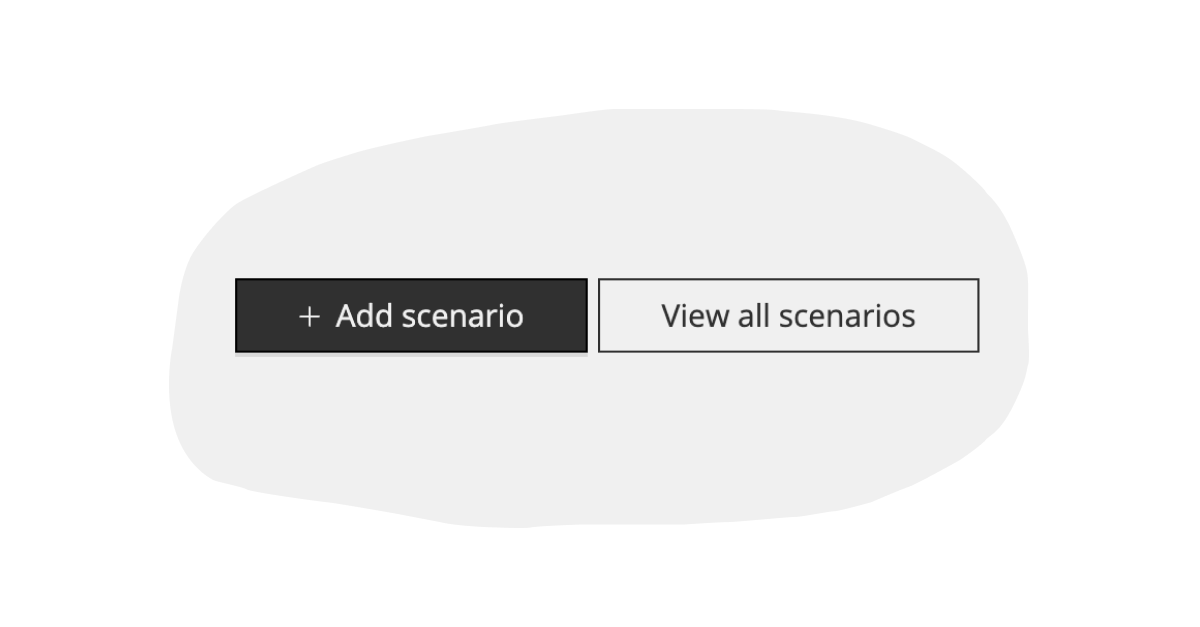
We have received more positive feedback about the new scenario component in Squirrel version 1.11 than any other single feature I can remember. With Squirrel scenarios, designers can give their end-users the ability to save sets of inputs (i.e. scenarios) for later retrieval.
For the end users this means a simple, one-click method of saving their current thinking as they use a published model. Perhaps to save high/medium/low forecasts, or different configurations of a product or even different funding options for building a wood pellet factory (as we shall see later).
This eager reception is not surprising. Simpler, more controlled and more engaging sharing of spreadsheets is a key use for Squirrel. Scenarios take this to the next level (certainly when compared to the same functionality in Excel).
(if you don’t know what Squirrel can do, there are a number of examples here. Remember each one of these is a just a different view of a spreadsheet)
Compared to the scenario manager In Excel, Squirrel scenarios are much simpler to use. Simpler for both for the spreadsheet creator and those viewing the resulting model.
Finding the scenario manager in Excel is the first issue. It is tucked away under “What-if Analysis” on the “Data” ribbon.
Once you find it, you have to work through a number of dialogs. Unfortunately, these mix the needs of the spreadsheet creator and those of the end-user.
First is the overall dialog. This has good options for the spreadsheet creator but rather too many for the end-user:
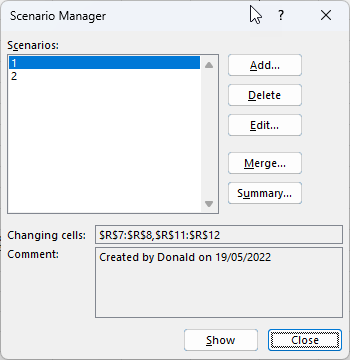
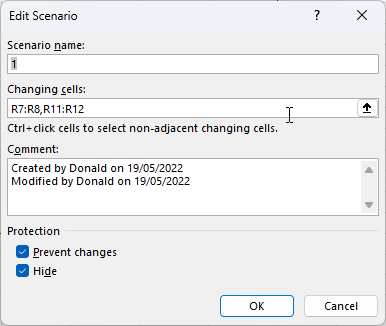
Next, one to define the cells to be saved. This is key for the spreadsheet creator but really the end-user should never see it:
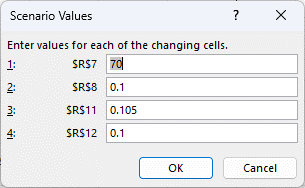
Finally the values for each of these cells. Both creators and users will find this a a fairly basic way to interact with the model.
On the other hand, Squirrel splits these two activities so they are simpler for both parties.
First, the desinger simply drags the Squirrel scenario component into the project:

and then specifies the ranges to save. (Note: unlike in Excel, these ranges can be from different sheets in the workbook)
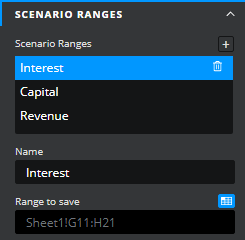
That is it, that is all the designer needs to do !
In the published project the end-user adjusts the values using interactive controls (sliders etc.). Then clicking on the Squirrel scenario’s “save” button provides an easy interface to save their current state:
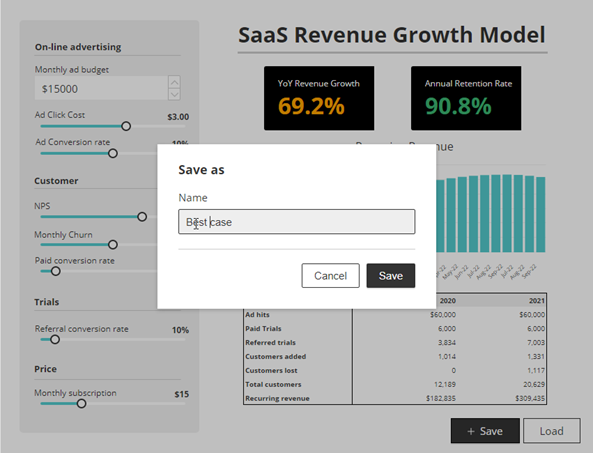
The loading process is just as easy:
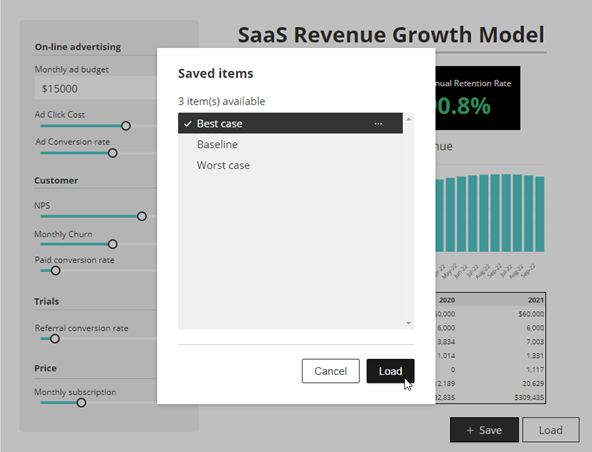
Much soother for both creators and end users.
Are you still sharing your spreadsheets the old-fashioned way? Perhaps scenarios will give you another reason to switch to Squirrel.
For inspiration, look at the wood pellet example referred to above. The folks from Future Metrics have created many Squirrel projects to highlight their expertise in the wood pellet market. The latest one looks at funding options for building a wood pellet factory and includes a scenarios capability. You can find it here. You can also fins a complete catalog of their public Squirrel project by scrolling down their home page


GET STARTED
Sign up, get building, and pay when you’re ready to launch.